Integrated MSAT with Claude using the Model Context Protocol (MCP), enabling Claude to interact with approved MSAT tools and resources based on the authenticated user’s access permissions.
Setup Instructions
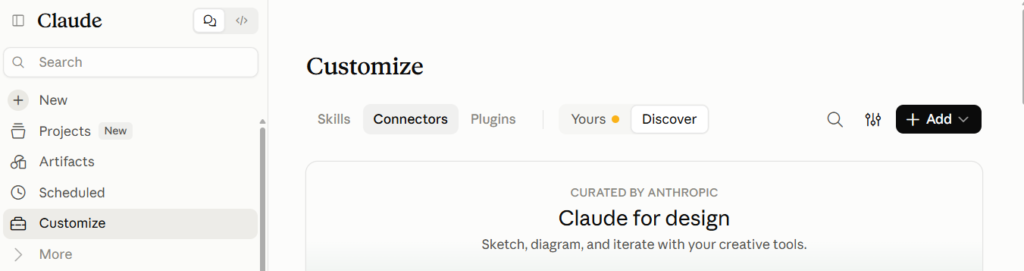
In Claude, go to Customize → Connectors → Add.
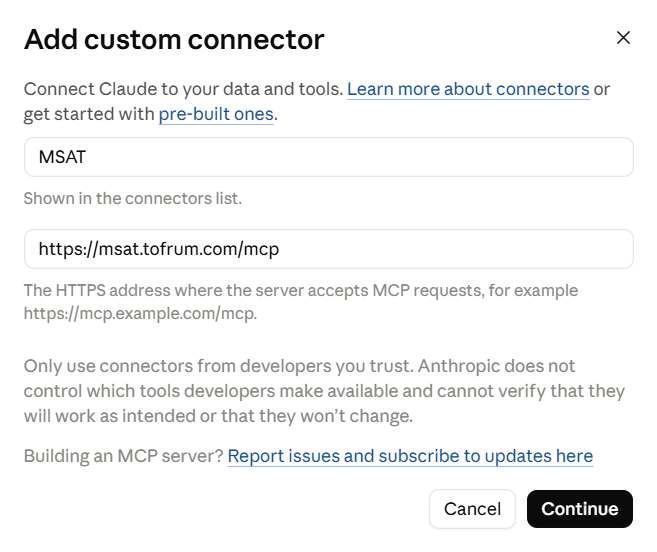
Enter the following details and click Continue:
Name: MSAT (or any preferred name)
MCP Server URL: https://msat.tofrum.com/mcp
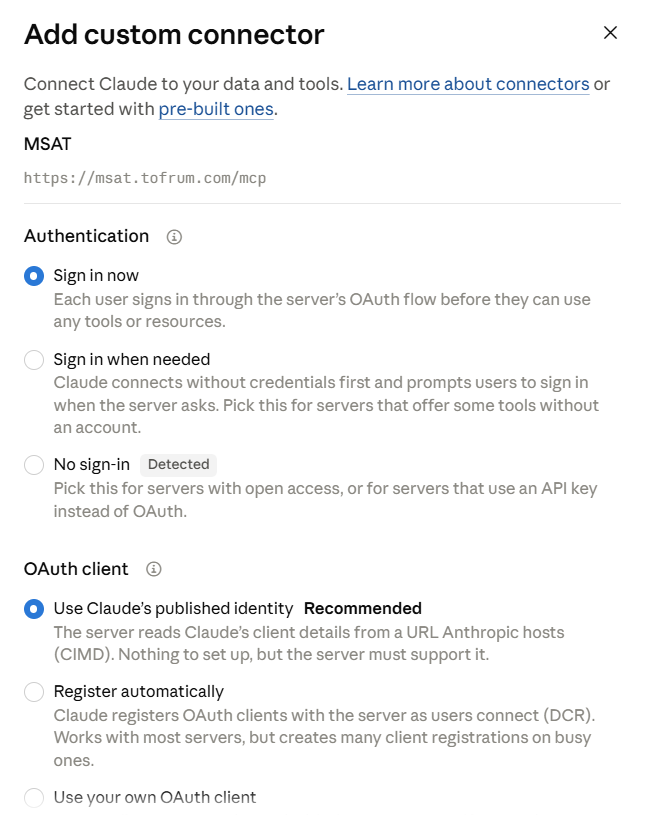
Under Authentication, select Sign in now.
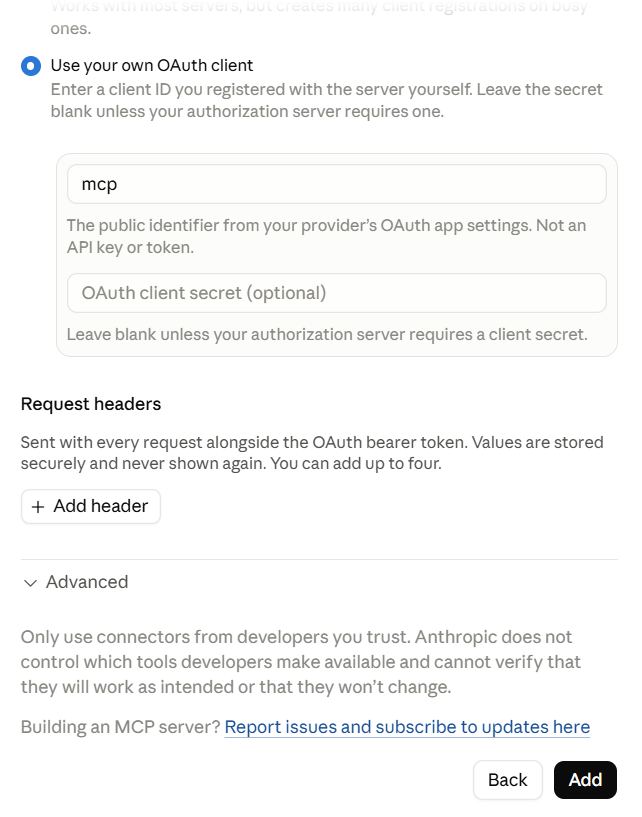
Under OAuth Client, select Use your own OAuth client, enter Client ID mcp, and click Add.
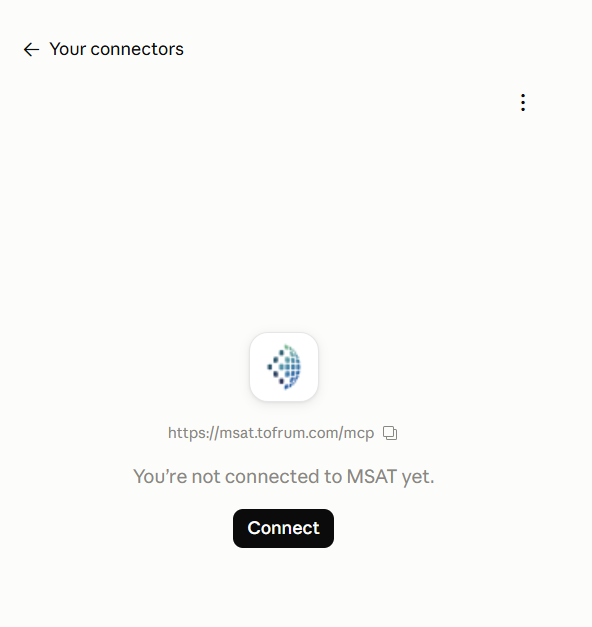
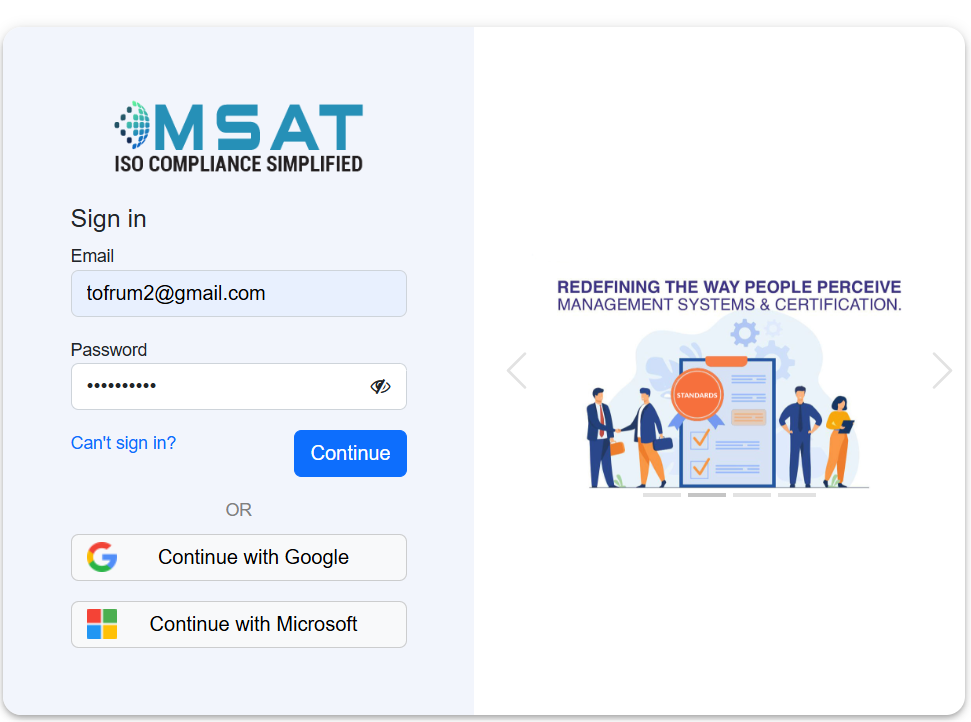
Click Connect. You will be redirected to the MSAT login page.
Log in using your MSAT email address and password. Once authenticated, the connection will be established.
Tool Permissions
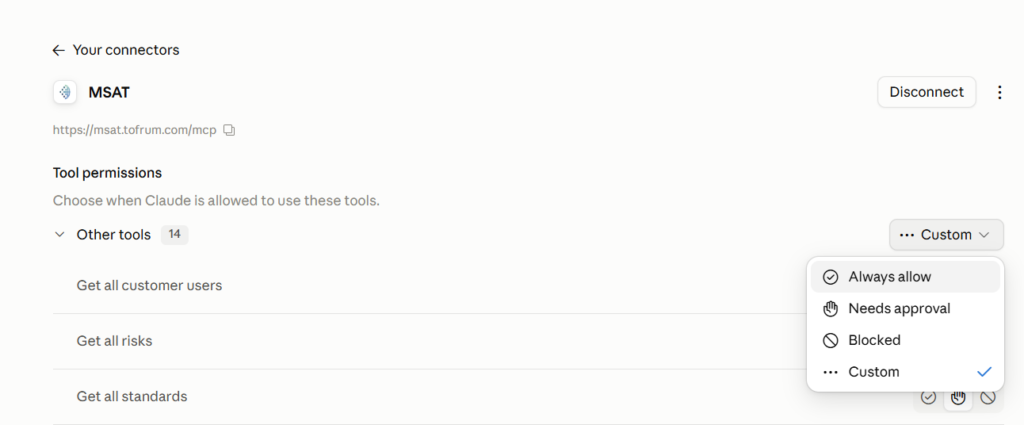
By default, Claude may ask for approval before using each MSAT tool. To change this:
Go to Customize → Connectors → MSAT.
Under Tool permissions, select the required tool.
Change Needs approval to Always allow.
Configure permissions individually and use Always allow only for tools you trust to operate without repeated confirmation.